Smartphone storage fills up faster than many people expect. Photos, videos, apps, and downloads quietly pile up in the background. Over time, the phone slows down, apps crash, and updates fail because there is not enough free space. Simple habits can prevent this daily frustration. You do not need advanced tools or technical knowledge to manage storage well. Focus on regular checks, light cleanup, and smart use of cloud and backup options. These small actions add up and keep your device responsive, secure, and ready for new files. Use the following practical tips as a weekly or monthly checklist.

Build Simple Daily Storage Habits
Check Free Space Before It Gets Too Low
Most phones start to slow down when storage falls below about 10–15%. Apps may freeze, photos may not save, and updates may fail to install. To avoid these problems, check your phone’s storage before it reaches a critical level. Open your storage settings and review both the total available space and the categories using the most space, such as apps, photos, videos, and system data. Set a reminder once a week or twice a month to review this screen. Early awareness gives you time to delete unneeded items calmly and keep your phone running smoothly.
Delete Downloads and Duplicate Files Often
Download folders fill quickly with PDFs, documents, and installation files you only need once. These files rarely clean themselves up and can take hundreds of megabytes or more. Open your Downloads folder regularly through your file manager or browser and remove old tickets, statements, and installers. Also, look for duplicate photos and files. Many gallery and file management apps offer a “duplicates” or “similar photos” tool to help you spot repeated images, burst shots, and copies from messaging apps. Review suggestions carefully so you do not delete important versions. By clearing downloads and duplicates weekly, you reduce clutter and free storage without losing meaningful content.
Manage Apps, Cache, and Media
Remove Apps You No Longer Use
Unused apps take up space, drain power, and create clutter. Many people install an app for one quick task and then forget about it. Start by checking your app list and reviewing which apps you rarely use. Remove anything you have not opened in the past month, unless it still has a clear purpose, such as banking, security, or account verification. You can also delete or disable preinstalled apps you never use, if your device supports it. Keeping fewer apps helps free up storage, reduce background activity, and make updates faster for the apps you actually need.
Clear Cache Only When Apps Have Issues
Cached data helps apps load faster by storing images, thumbnails, and temporary files. Clearing the cache too often can slow apps because they must rebuild that data. Treat cache cleaning as a troubleshooting tool, not a daily habit. When an app misbehaves, crashes, or shows outdated content, open Settings, find the app, and choose Clear Cache or Offload App, depending on your system. Avoid using aggressive “cleaner” apps that promise huge boosts; many simply wipe helpful cache and may run constant background scans. Focus on large apps like social media, browsers, or streaming services when you truly need extra space or face performance issues.
Use Backup and Cloud Tools Wisely
Back Up Photos Before Removing Local Copies
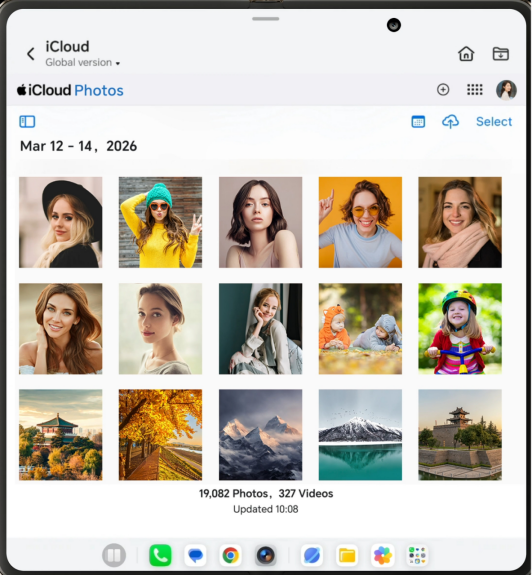
Photos and videos often consume the most space, yet many people fear deleting them. Cloud backup solves this when used correctly. Turn on Google Photos, iCloud Photos, or another trusted service and confirm that backups complete over Wi‑Fi. Check that recent pictures appear on another device or the web before you remove local copies from your phone. Some apps offer “Free up space” buttons that delete already backed-up media safely. Use high-quality or original quality settings based on your storage plan. Regularly back up and then clear old media, especially long videos and screen recordings, to reclaim space without losing memories.
Keep Important Files Easy to Find
A tidy file structure makes storage management faster. Create simple, clear folders in HONOR Magic V6 Smartphone or cloud drive, such as “Work,” “Personal,” “Receipts,” and “Travel.” Move important documents, tickets, and notes into these folders instead of leaving them scattered in Downloads or messaging apps. Give files short, descriptive names with dates, like “Invoice_2026-05” or “Flight_Ticket_June.” This system helps you spot which files matter and which you can delete without worry. When reviewing storage, you can skip organized folders and focus on the cleanup of unfiled items. Regular filing keeps your device efficient and reduces the risk of losing critical documents in clutter.
Conclusion
Good smartphone storage habits do not require constant effort or complex tools. A few minutes each week can keep your device fast, reliable, and ready for new apps and photos. Check free space before it gets low, delete downloads and duplicates, uninstall unused apps, and clear cache only when needed. Combine these steps with smart photo backups and simple file organization so important items remain safe and easy to find. As you repeat these actions, they become routine. Your phone will run more smoothly, updates will install without stress, and you will spend less time fighting storage limits and glitches.